Tengence Search User Guide: Add Search to a Business System in Four Steps

Summary: This guide shows how to connect Tengence Search to a business system: create an app, configure the index, build the index, then integrate through the API or a page component.
1. Tengence Search Overview
Tengence Search is Tengence's one-stop intelligent search product. It helps teams add high-quality search to a business system quickly. The main flow is:
| Step | Description |
|---|---|
| Create an app | Pick an industry and a plan to get the resource quota your search service needs |
| Configure the index | Map dataset fields to index fields to define the data structure behind search |
| Build the index | The system builds the search index automatically from your configuration |
| Integrate the app | Embed search through the API or a page component |
2. Open Tengence Search
-
Sign in to the Tengence console, find Tengence Search in the left navigation bar, and click to enter.
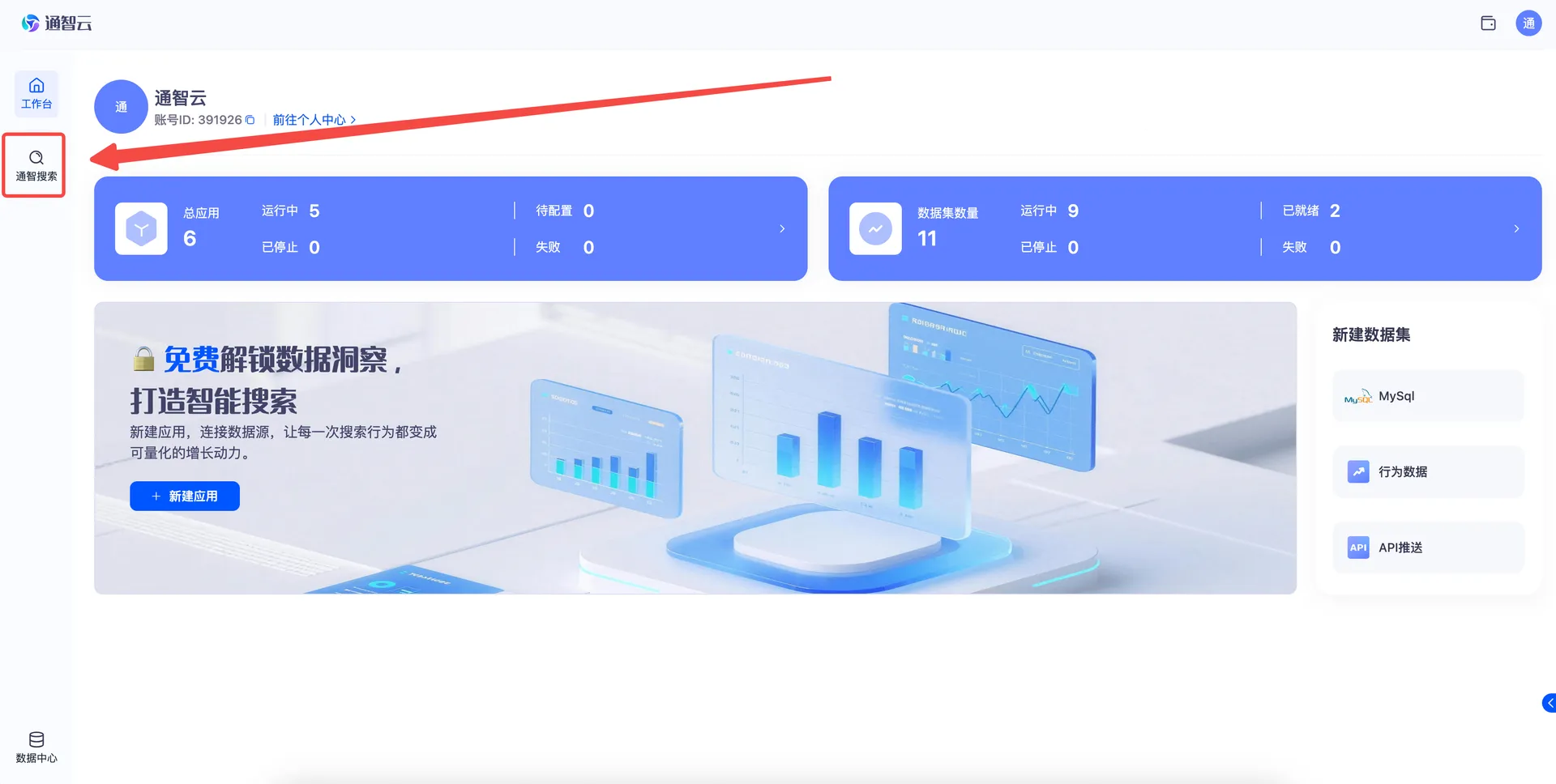
Figure 2-1 The Tengence Search entry in the left navigation bar -
You land on the Tengence Search overview page. It holds the Create app entry; click it to start the creation flow.
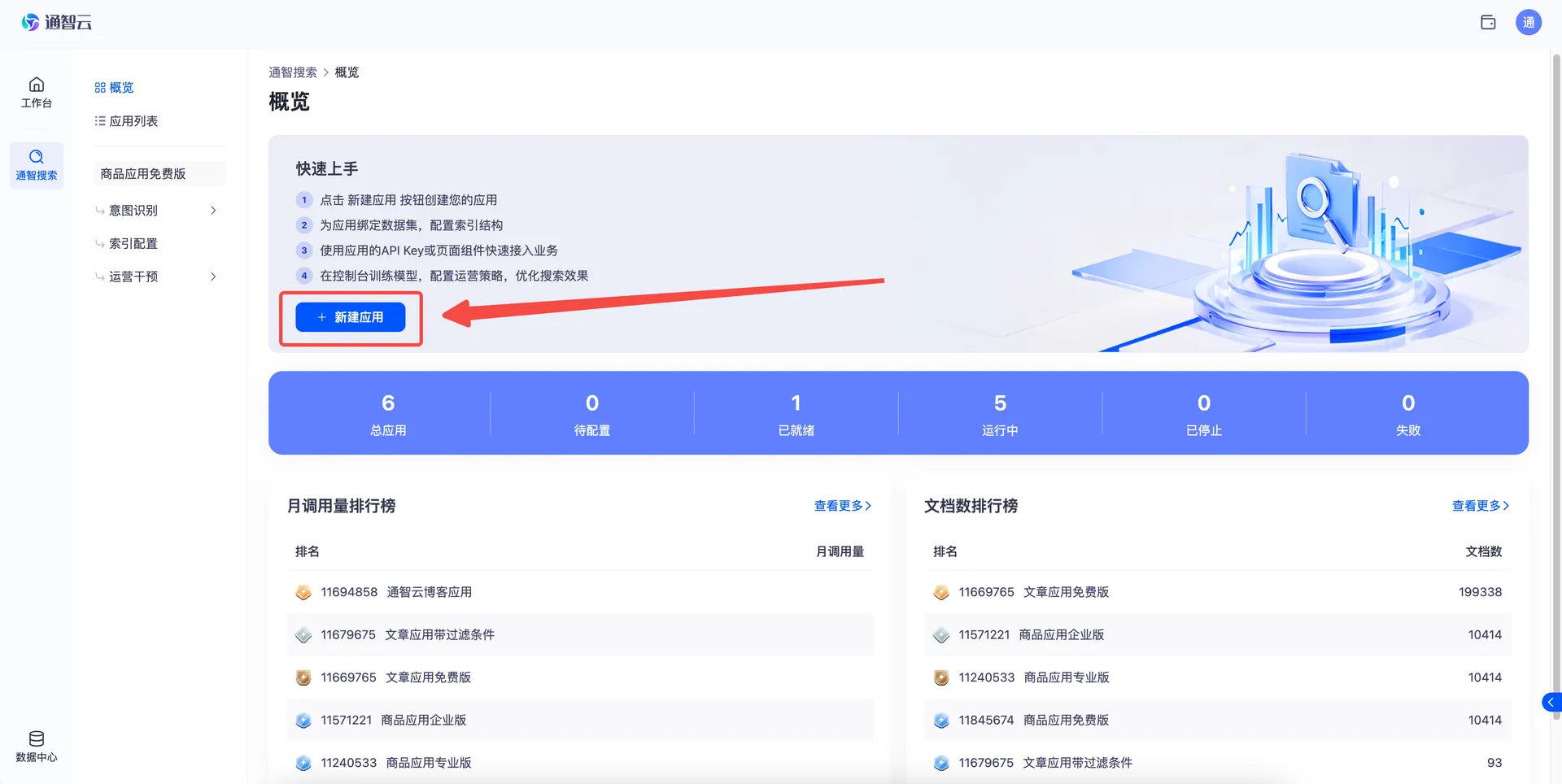
Figure 2-2 Tengence Search overview page
3. Create an App
Step 1: Choose an industry and a plan
-
Select the industry your business belongs to. The system applies industry-level optimization for the chosen industry. If your industry is not listed, choose General Industry.
-
Choose a plan tier. Different plans carry different resource quotas and features, so pick one that fits your business volume.
-
Click Create to finish creating the app.
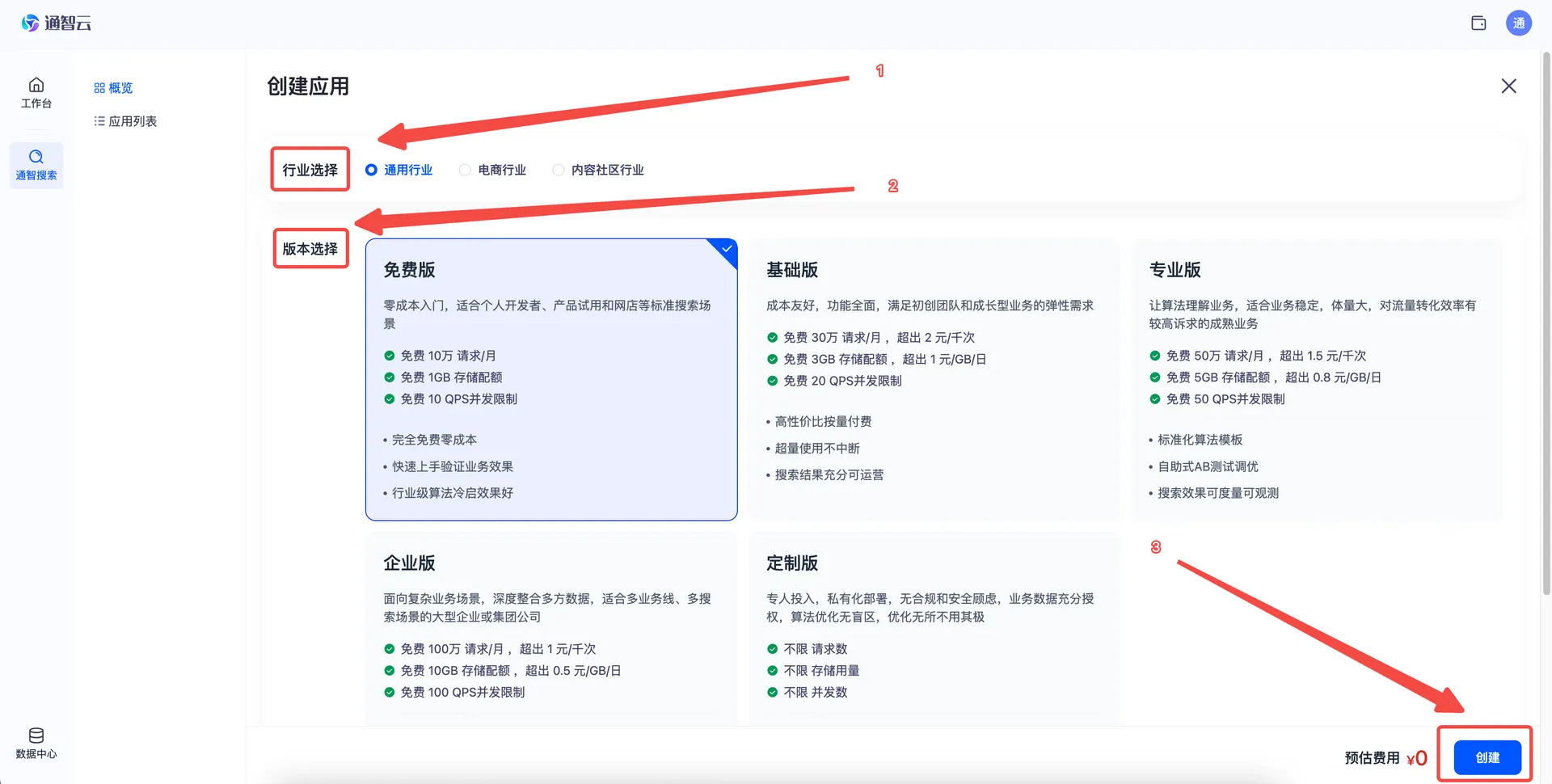
Figure 3-1 Choose an industry and a plan
Step 2: Open the app detail page
-
After creation, click Back to app list to return to the app list.
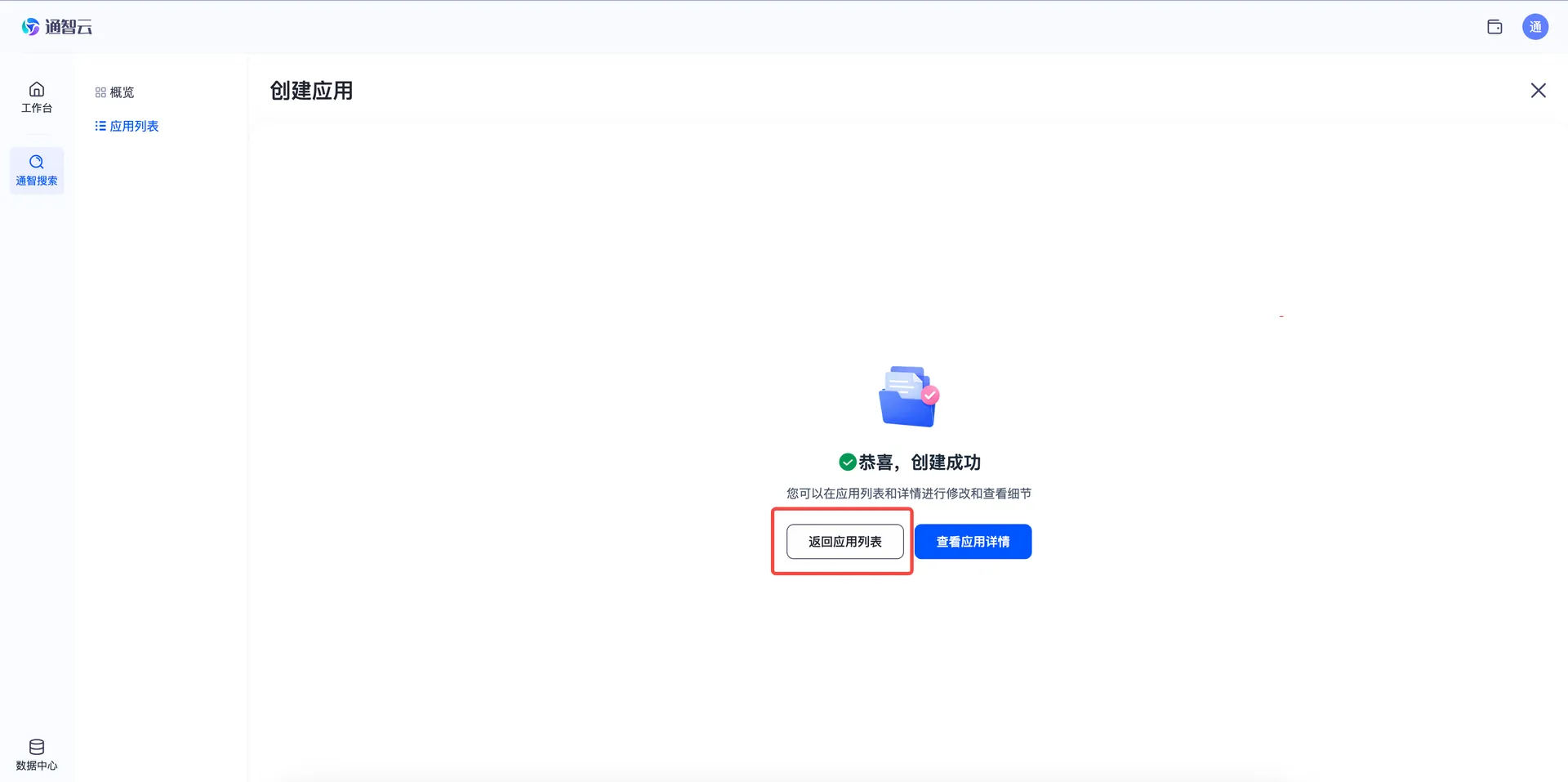
Figure 3-2 Back to app list -
The app you just created appears in the list. The list is sorted by creation time in descending order, and new apps are named automatically by the system.
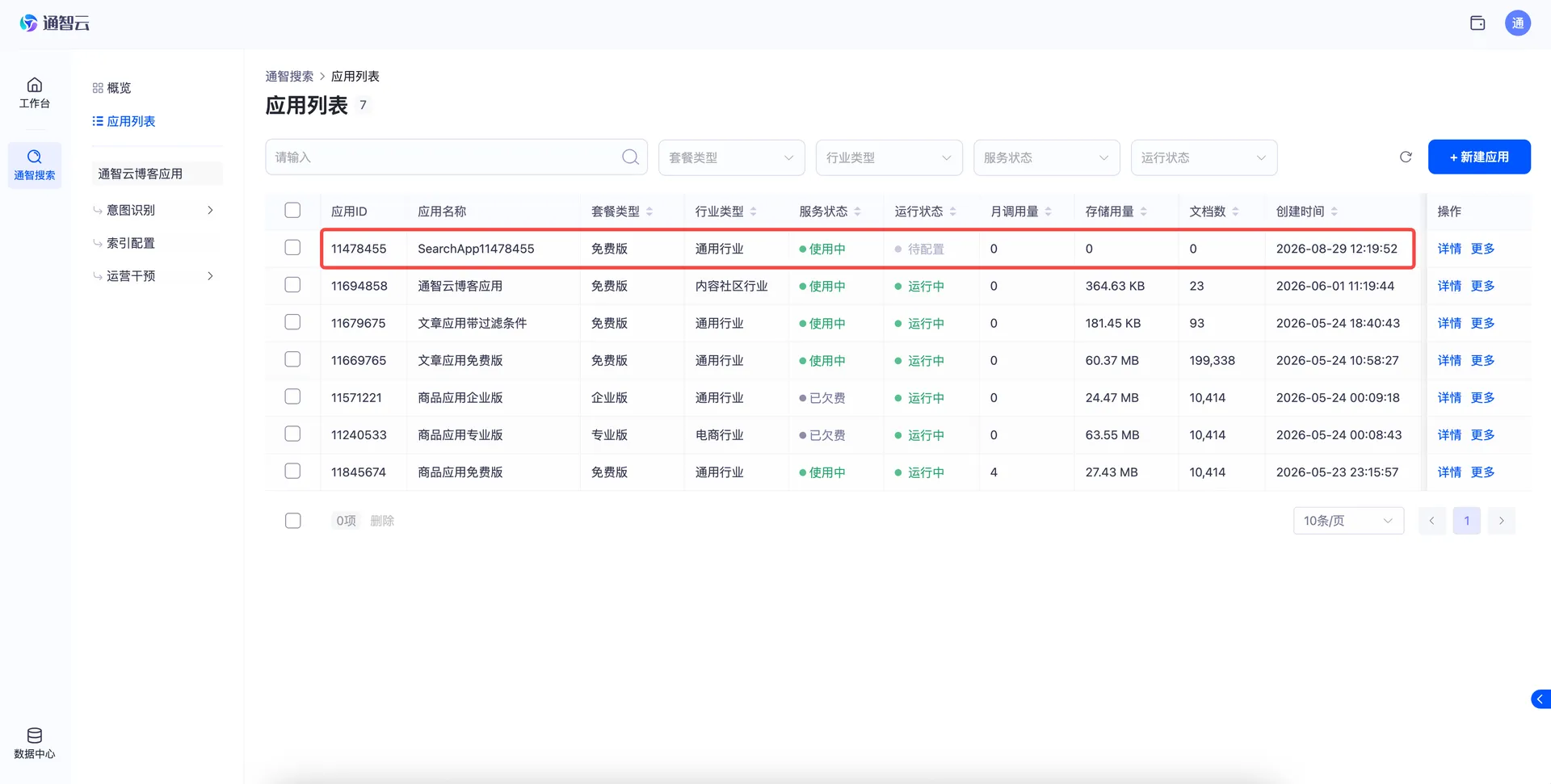
Figure 3-3 App list page -
Click the app name to open its detail page.
Step 3: Understand "Basic information" on the detail page
The app detail page contains the Basic information, Index configuration, and Preview areas. The main functions under Basic information are:
| # | Function | Description |
|---|---|---|
| 1 | Rename | Click the edit button after the app name to set the app name |
| 2 | Actions | Upgrade, renew, delete, and other operations |
| 3 | Service status | Shows the current plan tier and service status; supports upgrade or renewal |
| 4 | Running status | Shows the running status of the app; index configuration must be completed before use |
| 5 | Plan usage | Shows the current plan quota and usage; upgrading gives a larger quota |
| 6 | Preview | Opens a right-side panel showing how the search page component renders |
| 7 | API integration | Opens a right-side panel with the API integration guide |
| 8 | Page component | Opens a right-side panel with the search page component integration guide |
| 9 | API debugging | Opens a right-side panel with API debugging details to verify that configuration took effect |
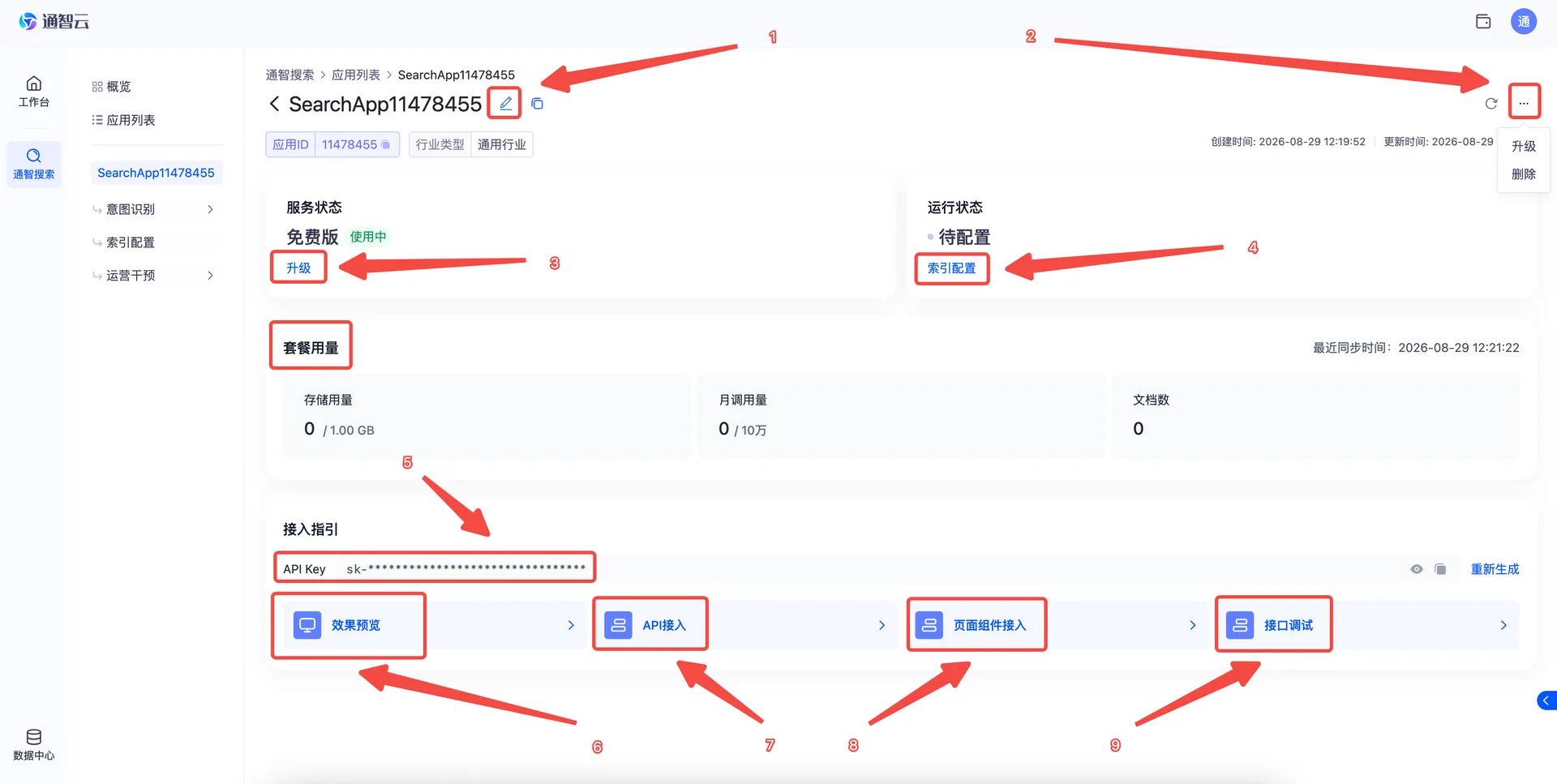
Figure 3-4 Basic information on the app detail page
⚠️ Note: The API Key is the credential used to call the app's APIs. Keep it safe and never expose it.
4. Index Configuration
The index is the foundation of search. Index configuration maps dataset fields to index fields, and the system builds the search index from that mapping.
Step 1: Open the index configuration page
On the app detail page, click Index configuration to open the configuration page.
-
If no dataset exists yet, click Create dataset to start the dataset creation flow.
-
If a dataset already exists, click Link existing dataset and choose it as the index data source.
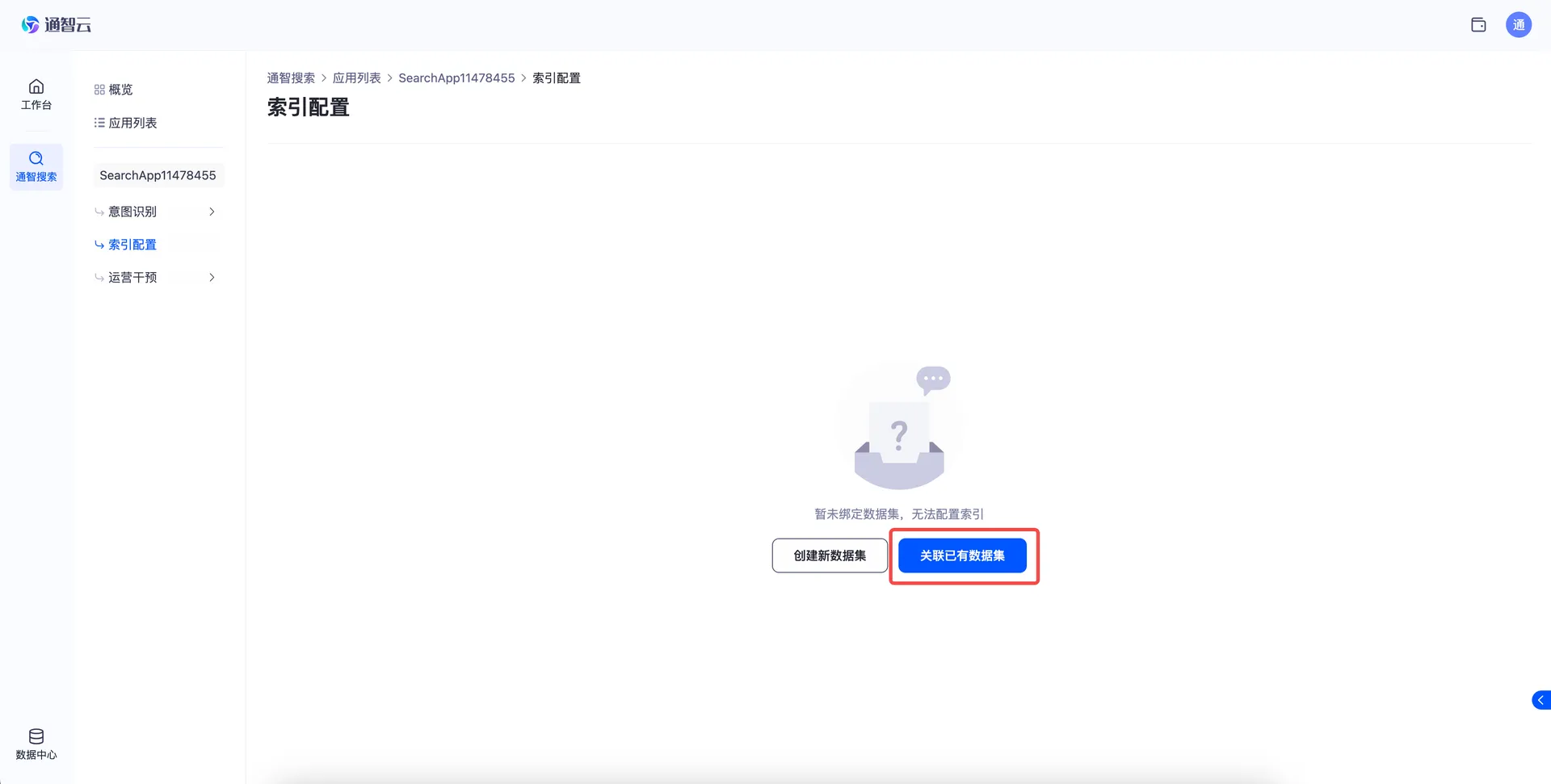
Figure 4-1 Index configuration entry
Step 2: Choose a dataset
Select the dataset that will serve as the index data source.
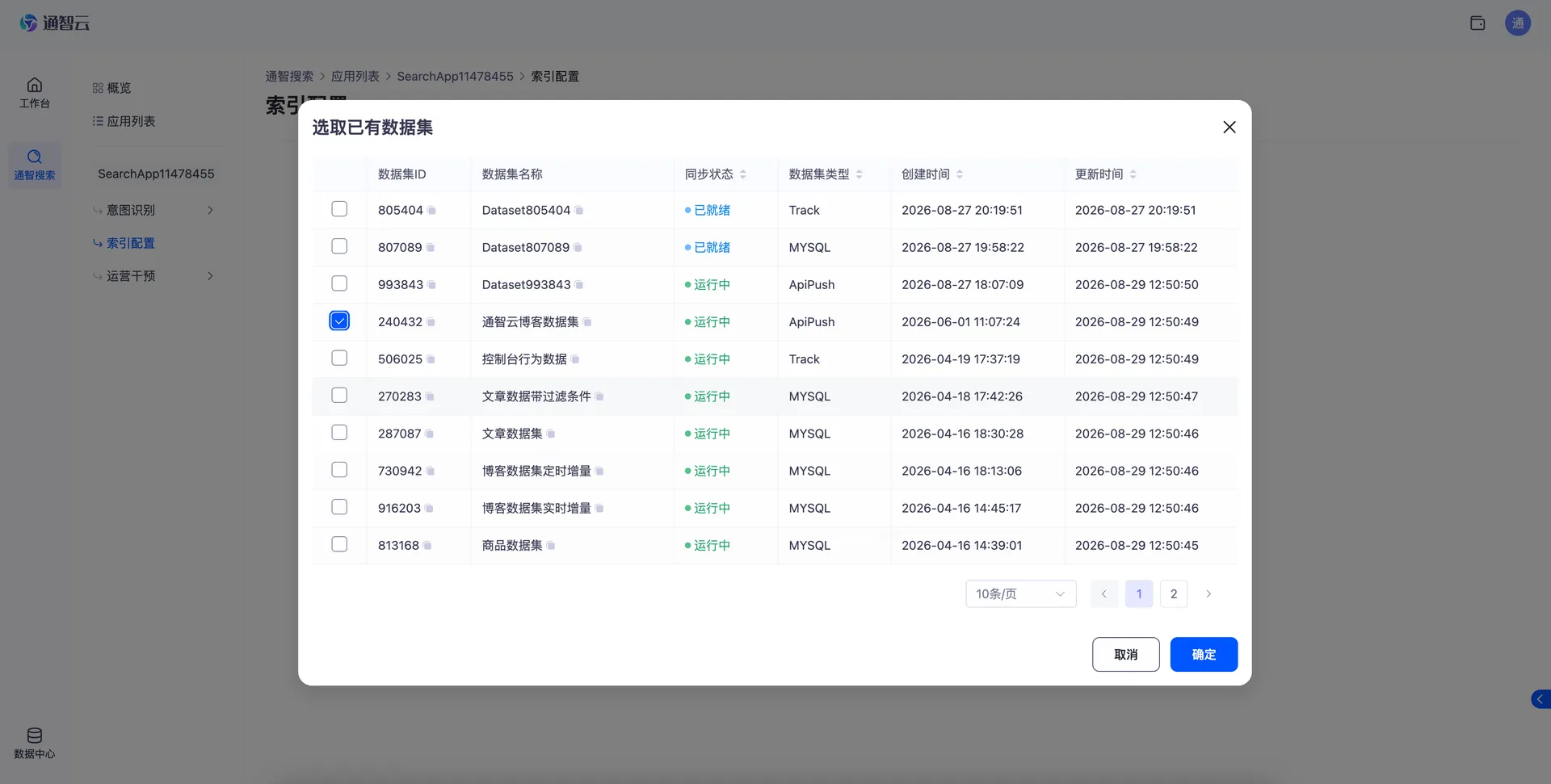
Figure 4-2 Choose a dataset
Step 3: Configure index fields
The system ships index templates for common business scenarios, and you can adjust them further. Each setting works as follows:
-
Semantic label: assign a semantic label to a field so the system understands your business data better.
-
Index field: the template presets index field names; you only map the matching dataset fields. An index must have exactly one ID field to identify each record, and at least one field whose Field type is Tokenization, otherwise search will not work.
-
Dataset field: choose the dataset field behind each index field. The system builds the index from that field's content.
-
Field type: choose how the field is processed into the index; this determines how the data is handled.
-
Field weight: set a weight for Tokenization fields; at search time the system ranks results by these weights.
-
Add index field: to add business fields beyond the template list, click Add index field.
-
Click Save to store the index configuration.
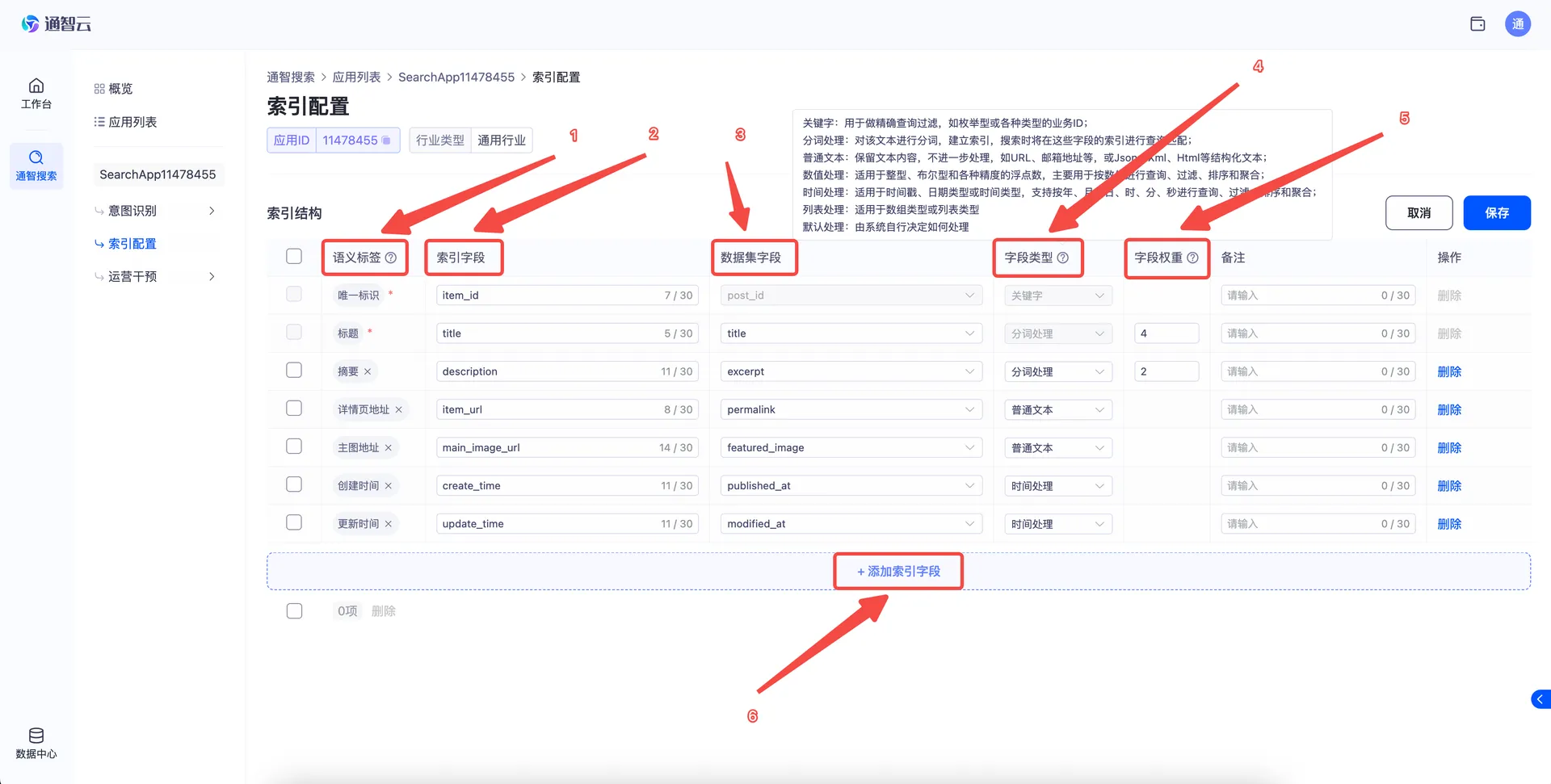
Figure 4-3 Index field configuration
💡 Tip: In the header of the index field list, hover over the "?" icon next to a field name to read the detailed description of that column.
Step 4: Start building the index
After the index is saved, click Start in the dialog to begin building. You can also click Not now, keep editing the configuration, and start the build later.
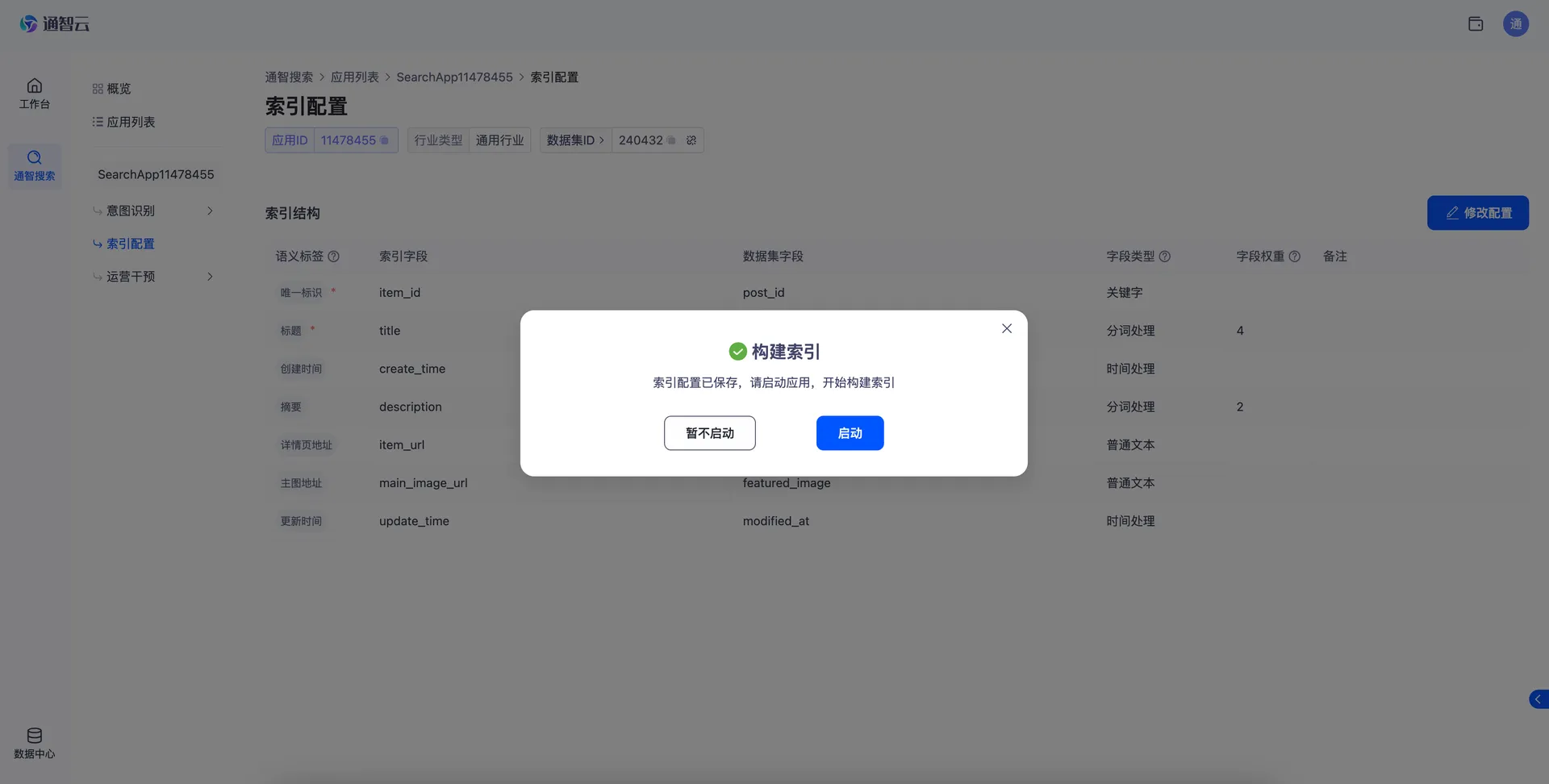
Figure 4-4 Start building the index
Step 5: Check build progress
-
Return to the app detail page; the Running status area shows the app status and lets you stop the build.
-
The Document count area shows how many documents have been built into the index.
-
Click the refresh button to watch the document count change in real time.
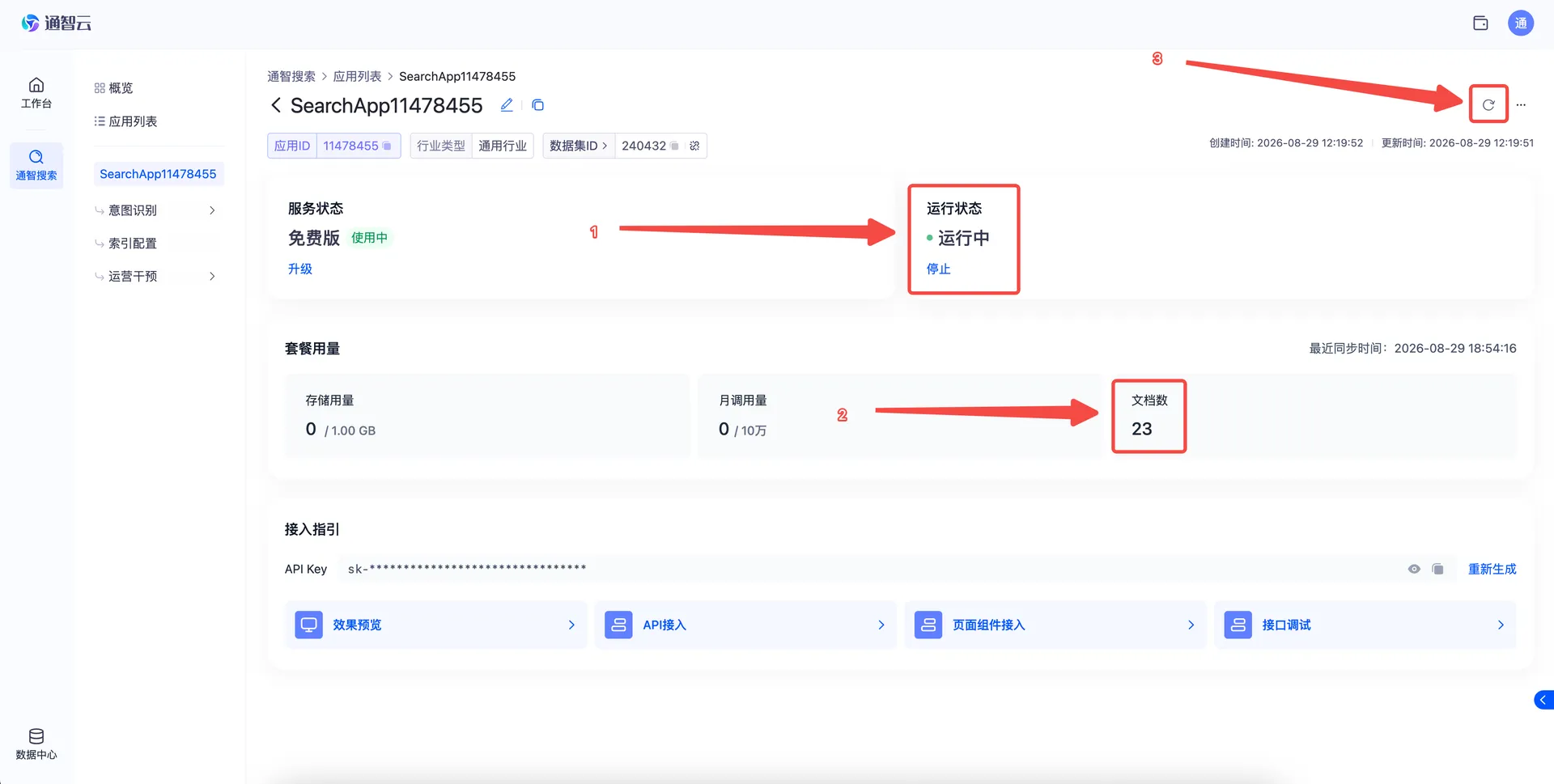
Figure 4-5 Check index build progress
5. Integrate the App
Once the index is built, you can connect search to your business system. Tengence Search offers several integration paths.
Preview
Click Preview to open a right-side panel showing how the search page component renders, so you can confirm the search experience before integrating.
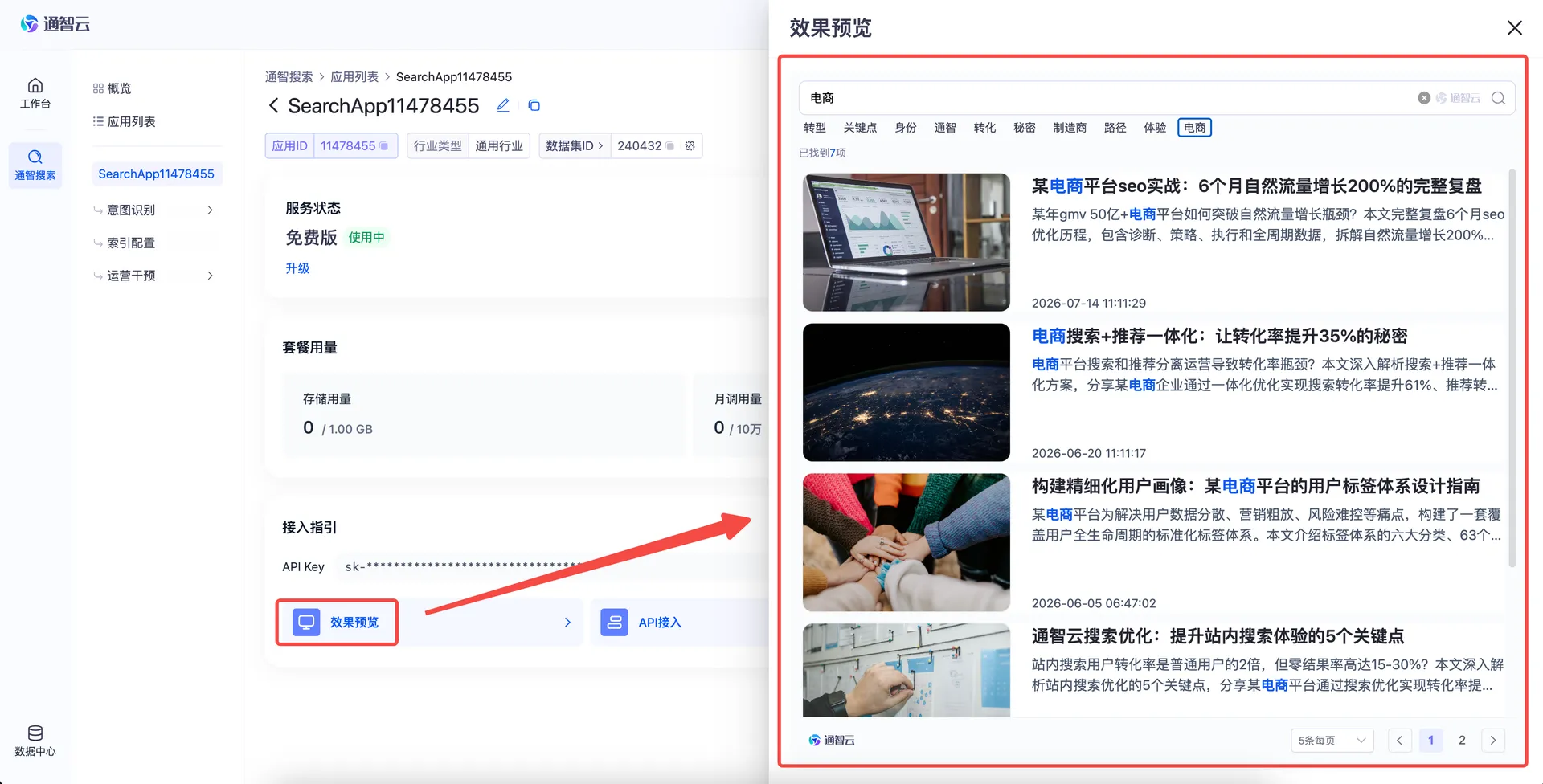
Figure 5-1 Preview
API integration
Click API integration to open a right-side panel with the API details: request URL, parameters, and sample responses.
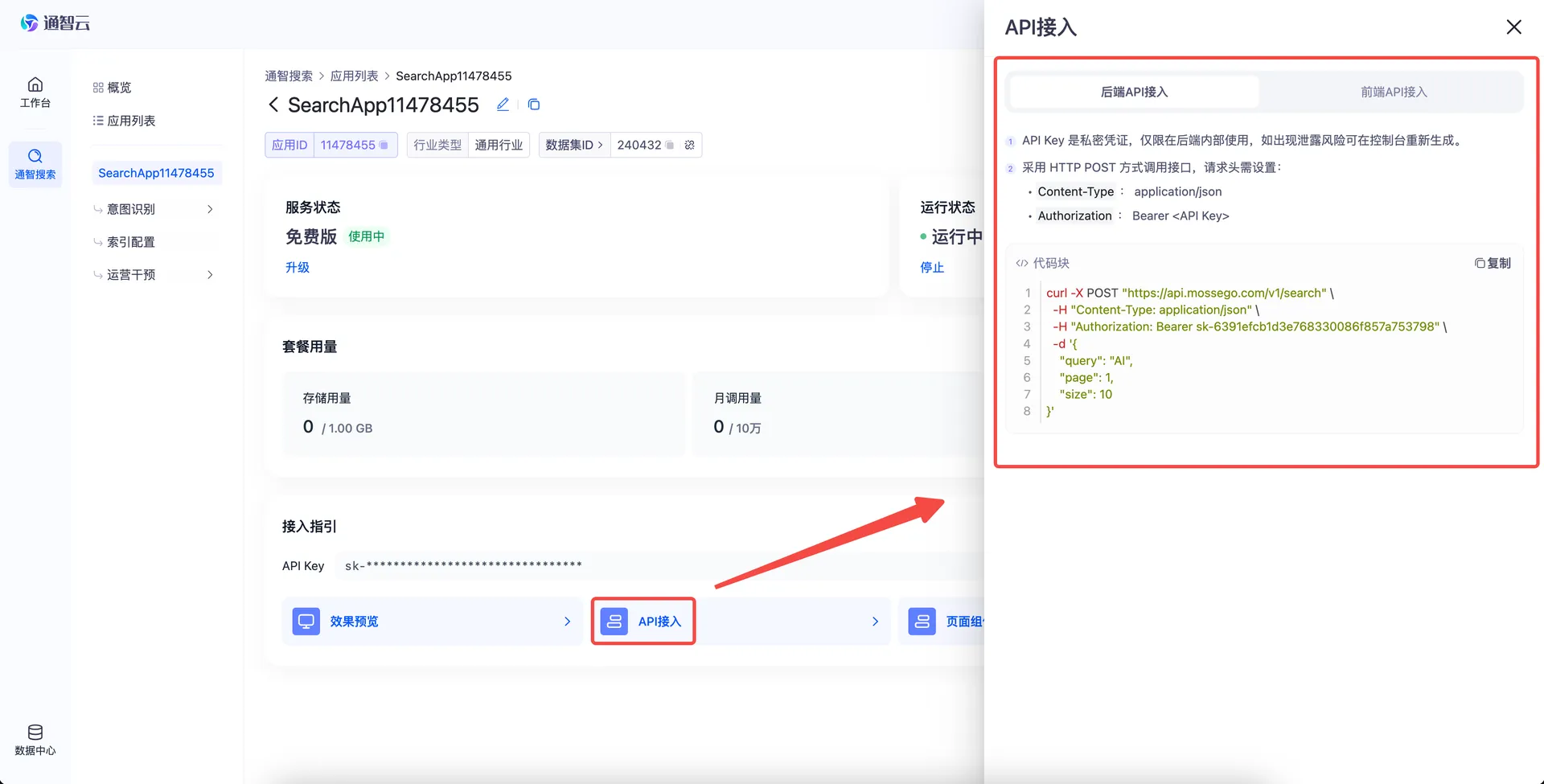
Figure 5-2 API integration guide
Page component integration
Click Page component to open a right-side panel with the component integration guide. Embed the component code to add search to a page quickly.
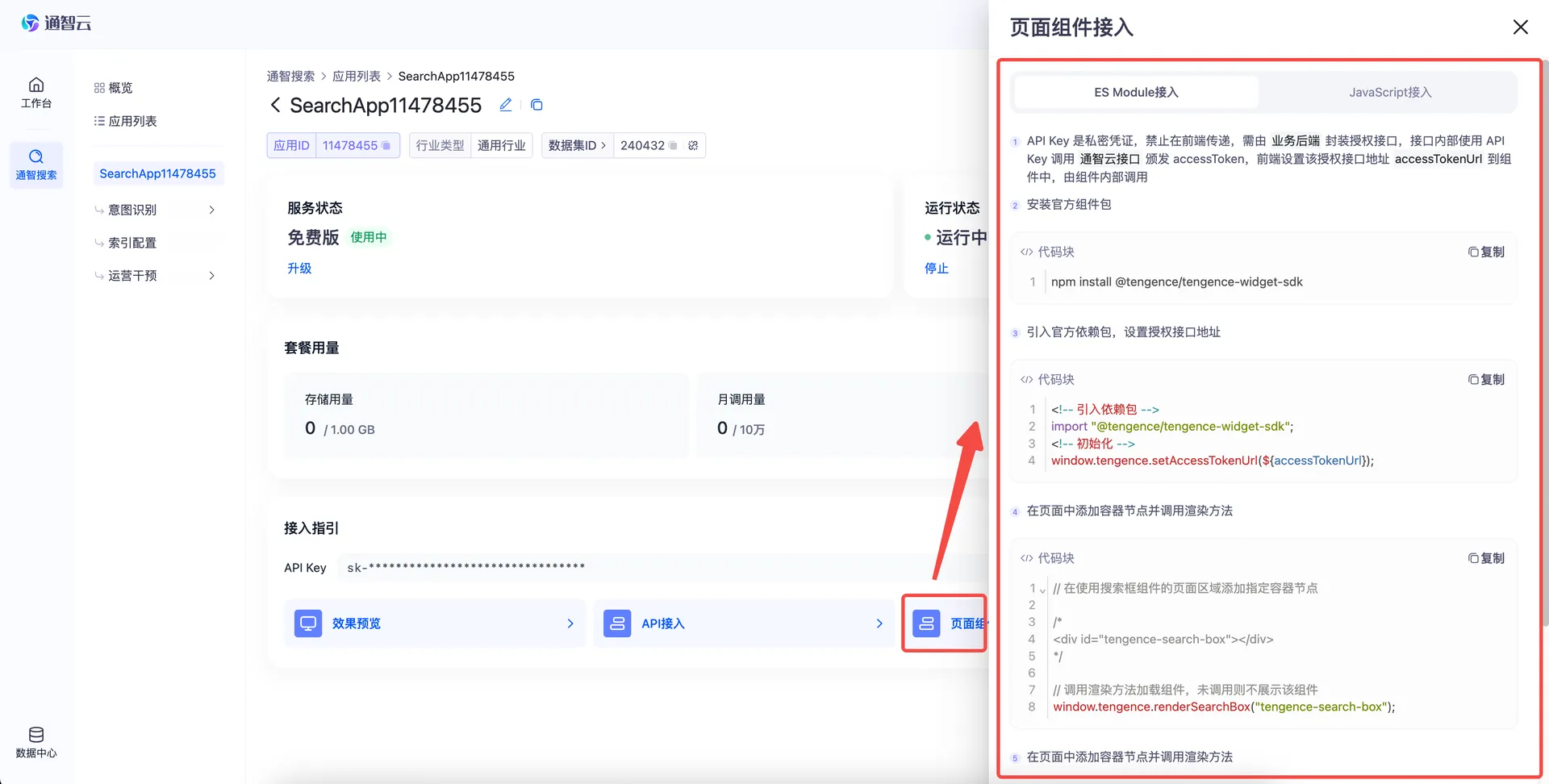
Figure 5-3 Page component integration guide
API debugging
Click API debugging to open a right-side panel with detailed debugging information, used to verify that your search configuration took effect.
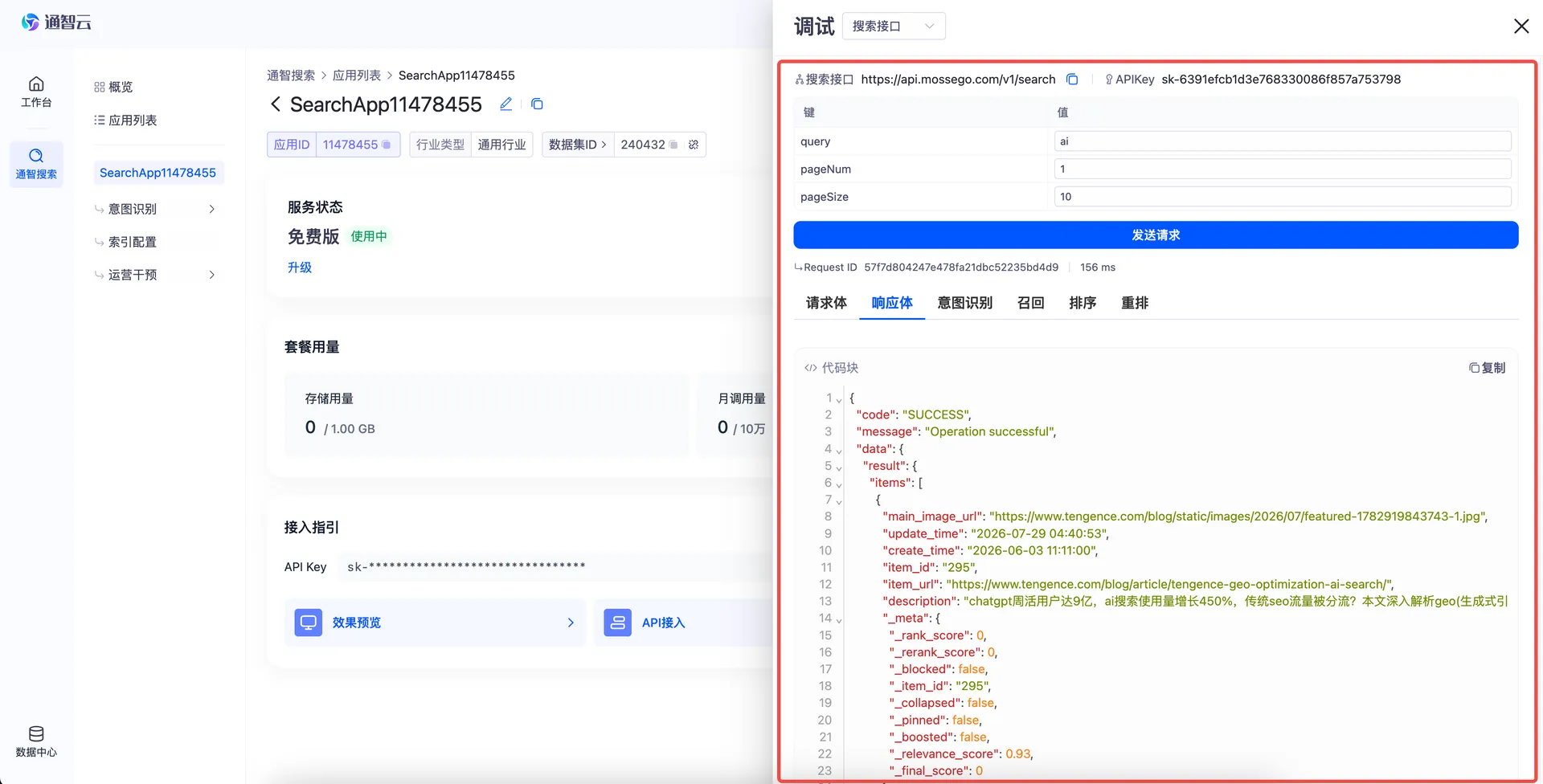
Figure 5-4 API debugging
Appendix: Glossary
| Term | Description |
|---|---|
| App | The search service unit in Tengence Search. Each app maps to an independent search service and holds its index configuration, API Key, and other resources |
| ID field | The field that uniquely identifies a record in the index. Every index must have exactly one |
| Index | The data foundation of search, mapped from dataset fields and built from the index configuration |
| Semantic label | A label describing the business meaning of a field, helping the system understand business data better and improve search and ranking |
| Tokenization | Splitting a text field into smaller tokens so users can match content by keyword |
| Field weight | The weight set for a Tokenization field; the system ranks results by these weights at search time |
| Dataset | The storage unit in the Tengence data center. It is the index data source and supports three ingestion methods: API push, MySQL sync, and behavioral data |